> ## Documentation Index
> Fetch the complete documentation index at: https://docs.aibal.ai/llms.txt
> Use this file to discover all available pages before exploring further.
# Try it in the web app
> Create your first image or video in the browser without installing a client
You can generate images and videos directly in aibal.ai. Start with one image to complete the full workflow: prepare your account, select a Key, and save the result.
## Before you start
Use a modern browser with access to [aibal.ai](https://aibal.ai/). You need a signed-in account, available balance or quota, and an API Key that supports the target model. Web usage may incur charges; this is not a promise of a free trial.
## Complete your first generation
 Existing users can [sign in](https://aibal.ai/login). New users should follow [Register an account](/en/register) before opening the console.
Check the available balance in the console. If needed, follow [Top up your account](/en/recharge) to use USDT or a redemption code. Available methods and credited amounts follow the current page.
Follow [Create an API Key](/en/create-api-key), choose a recognizable name, and select a group that supports image generation. Select the Key in the web page; do not paste it into your prompt.
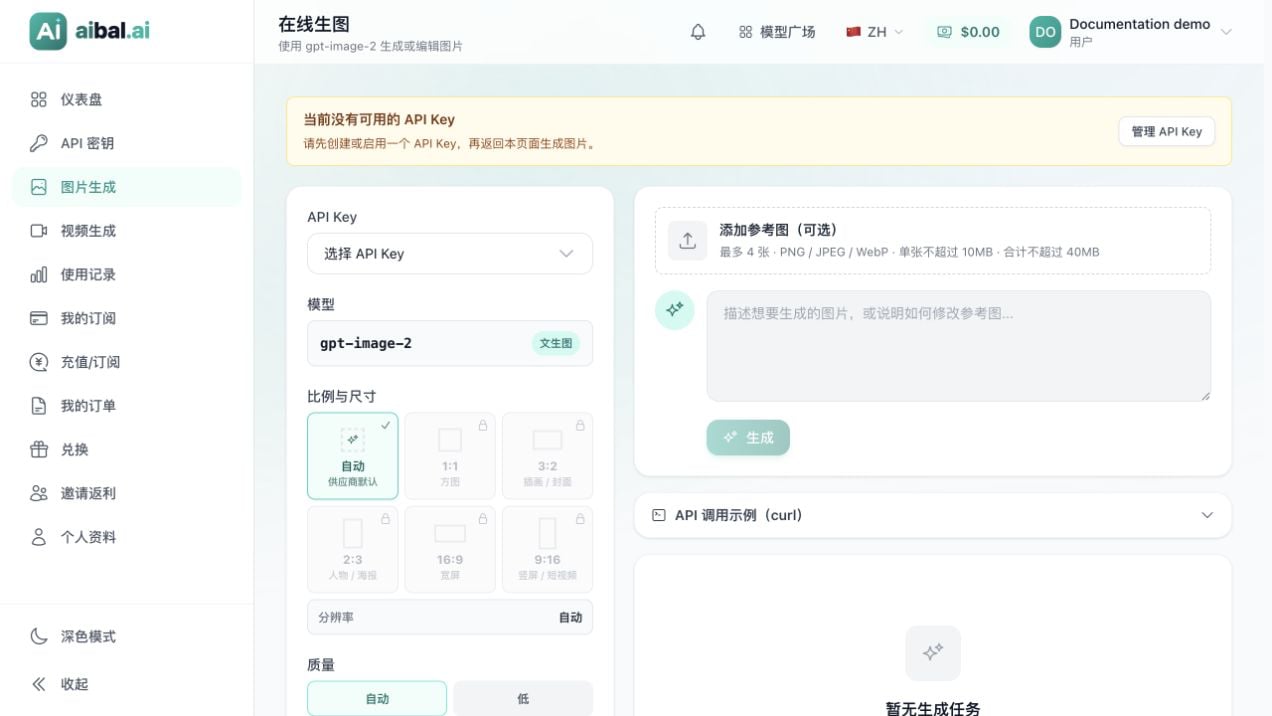
Open [Image Studio](https://aibal.ai/image-studio) and select your **API Key**. Keep automatic size and quality, one image, and PNG format. Do not add a reference.
Enter “An orange kitten by a sunny window, watercolor illustration, no text” and click **Generate**. Keep the page open while the request runs.
Click **Preview** and **Download** on the completed result. Open [usage records](https://aibal.ai/usage) to review the call. Save your image before refreshing or leaving Image Studio.
You should now have an image saved locally. To adjust the subject, style, or references, read [Text to image (web and API)](/en/text-to-image).
## Choose what to try next
| Your goal | Where to go |
| ---------------------------------------- | ----------------------------------------------------------------- |
| Adjust image settings or edit references | [Text to image](/en/text-to-image) |
| Generate a short video | [Text to video](/en/text-to-video); start with 4 seconds and 480p |
| Connect a coding tool | [Integration overview](/en/integrations) |
| Review requests and spending | [Usage records](https://aibal.ai/usage) in the console |
## Frequently asked questions
### Why does web generation require an API Key?
The studio submits requests using your selected Key. Its status, group, quota, and model permissions affect the result; signing in does not replace these requirements.
### Why can't I generate even with a balance?
Check whether the Key is active, within quota, and in a group that supports the model. Follow the specific error message instead of repeatedly clicking Generate.
### Can I close the page and come back?
Image results belong to the current page session, so download them first. Submitted videos are available under **History**; closing the page does not cancel generation. If the connection drops or the status is uncertain, check tasks and usage before retrying.
### Can I use a phone?
Use the same website in your mobile browser. Tap **Generation settings** or **Video settings** to expand collapsed controls. Download and save behavior depends on your browser.
Keep passwords and API Keys out of prompts. Before sharing a screenshot, check the Key selector, API examples, account details, and generated content for sensitive information.
Existing users can [sign in](https://aibal.ai/login). New users should follow [Register an account](/en/register) before opening the console.
Check the available balance in the console. If needed, follow [Top up your account](/en/recharge) to use USDT or a redemption code. Available methods and credited amounts follow the current page.
Follow [Create an API Key](/en/create-api-key), choose a recognizable name, and select a group that supports image generation. Select the Key in the web page; do not paste it into your prompt.
Open [Image Studio](https://aibal.ai/image-studio) and select your **API Key**. Keep automatic size and quality, one image, and PNG format. Do not add a reference.
Enter “An orange kitten by a sunny window, watercolor illustration, no text” and click **Generate**. Keep the page open while the request runs.
Click **Preview** and **Download** on the completed result. Open [usage records](https://aibal.ai/usage) to review the call. Save your image before refreshing or leaving Image Studio.
You should now have an image saved locally. To adjust the subject, style, or references, read [Text to image (web and API)](/en/text-to-image).
## Choose what to try next
| Your goal | Where to go |
| ---------------------------------------- | ----------------------------------------------------------------- |
| Adjust image settings or edit references | [Text to image](/en/text-to-image) |
| Generate a short video | [Text to video](/en/text-to-video); start with 4 seconds and 480p |
| Connect a coding tool | [Integration overview](/en/integrations) |
| Review requests and spending | [Usage records](https://aibal.ai/usage) in the console |
## Frequently asked questions
### Why does web generation require an API Key?
The studio submits requests using your selected Key. Its status, group, quota, and model permissions affect the result; signing in does not replace these requirements.
### Why can't I generate even with a balance?
Check whether the Key is active, within quota, and in a group that supports the model. Follow the specific error message instead of repeatedly clicking Generate.
### Can I close the page and come back?
Image results belong to the current page session, so download them first. Submitted videos are available under **History**; closing the page does not cancel generation. If the connection drops or the status is uncertain, check tasks and usage before retrying.
### Can I use a phone?
Use the same website in your mobile browser. Tap **Generation settings** or **Video settings** to expand collapsed controls. Download and save behavior depends on your browser.
Keep passwords and API Keys out of prompts. Before sharing a screenshot, check the Key selector, API examples, account details, and generated content for sensitive information.