

Choose how to connect
Before you start
1
Prepare your account
Register an account, sign in to aibal.ai, and confirm that your account is available. Follow the top-up guide when you need more balance.
2
Create a key for your tool
Create an API Key, using a separate name such as
codex-laptop or claude-work for each tool. Check that it is active, has not expired, and belongs to a group that supports your model.3
Check the key's usage configuration
Click Use Key in the key list and select your client and operating system. Prefer the addresses and model settings generated there: they can vary by group. Your account password is not an API Key.
4
Configure and verify
Follow the guide for your tool, save the configuration, and start a new session. Send a short message, then check its model and cost in Usage before starting a larger task.
Test messages are model requests and may incur charges. Available models, prices and limits are those currently shown in the console. Access to image generation on the web does not automatically grant a key access to every text or video model.
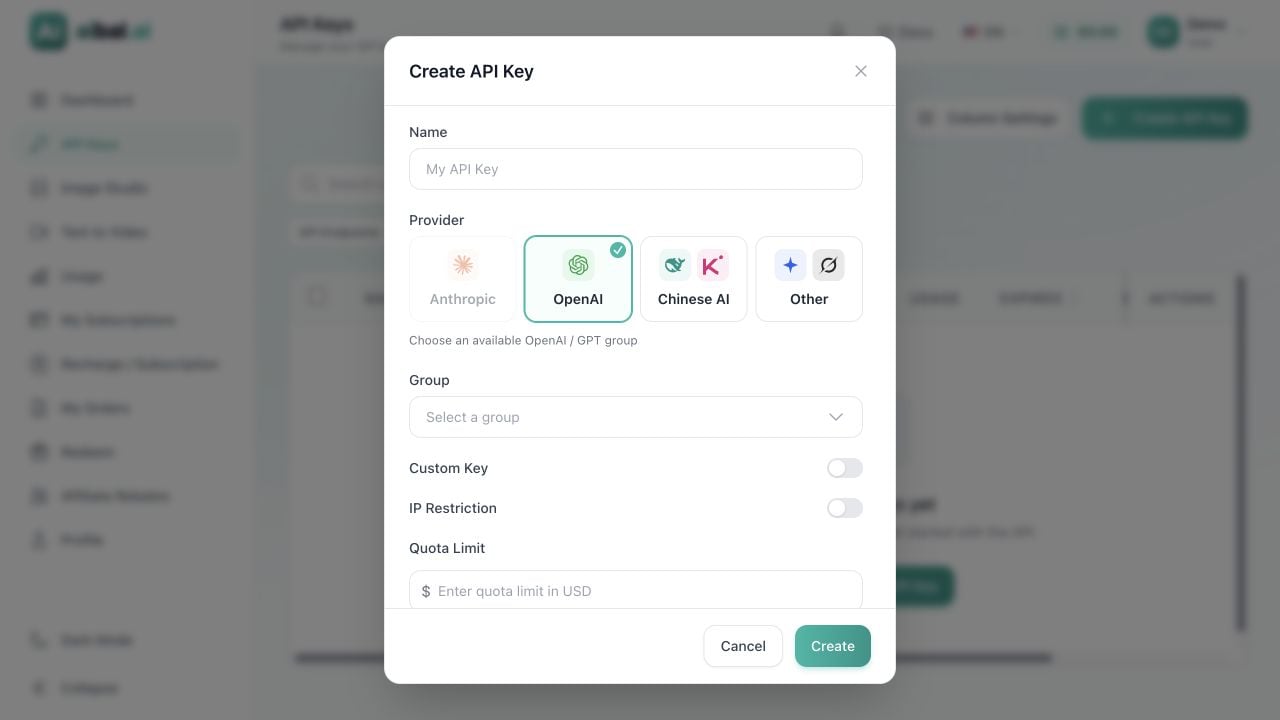
Preparing an API Key for a client: the empty creation form; no key has been created
Addresses, keys and model IDs
These are the common endpoints. If Use Key provides a group-specific address with an additional path, keep the full address and use that group’s configuration.
What a successful connection looks like
A normal answer in the client, together with a matching timestamp, key and model in console Usage, confirms that the request reached your aibal.ai account. Saving settings or starting the client alone does not verify a model call.Common questions
I get 401 or an invalid-key error
Copy the complete key again. Check for surrounding whitespace, whether the environment variable is active in this terminal, and whether the key was deleted or disabled. Never post the key in a public chat or support ticket.The model is unavailable or access is denied
Check the key’s group, the complete model ID and the client protocol. Use a model from that key’s configuration. If the error continues, share the error text, time and client version with support.I get 404, 429 or insufficient balance
For404, check for a duplicate /v1. For 429, check concurrency or rate limits and reduce request frequency. For balance or quota errors, check your account balance, subscription status and key limit, then follow the error message.