

Before you start
- Sign in to aibal.ai and prepare an active API Key with access to image generation.
- Check your account balance and Key quota; top up if needed. Web generation also incurs usage charges.
- Upload only images you have permission to process. Keep passwords, identity documents, and other sensitive content out of your references.
gpt-image-2 model.
Generate images in the browser
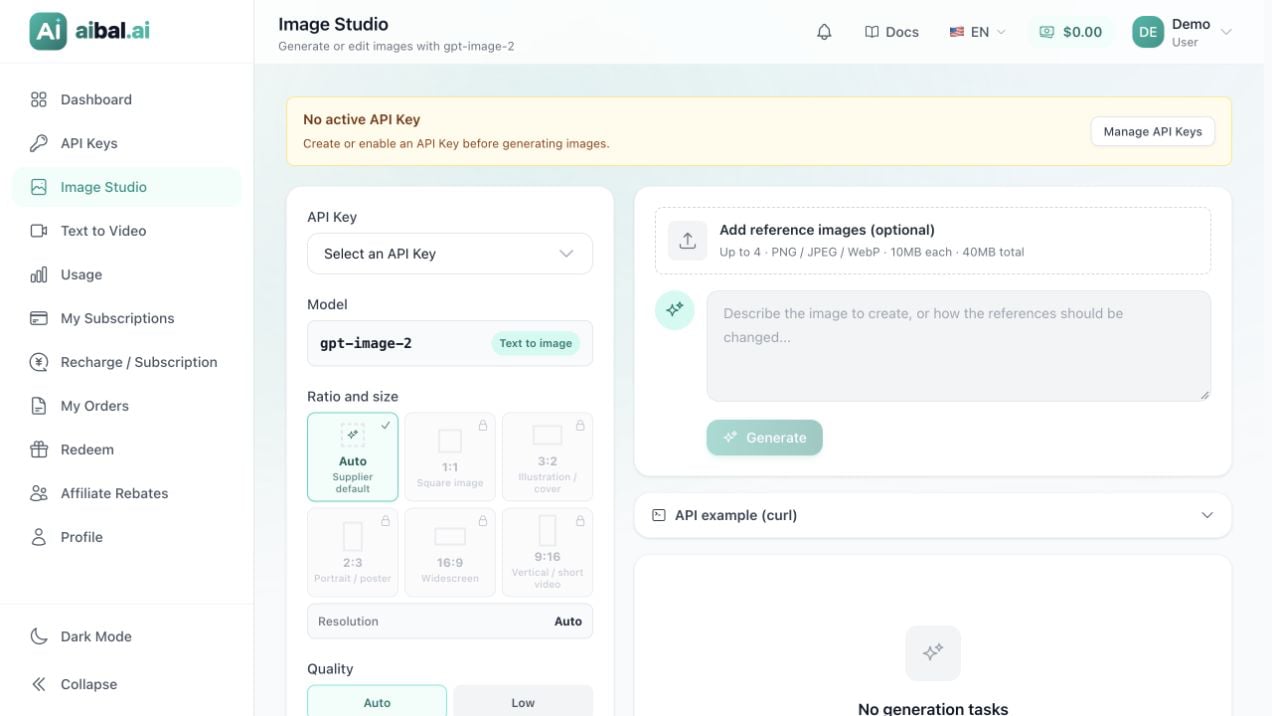
Image Studio. No API Key has been created yet; prepare one before generating.
1
Open Image Studio
Open Image Studio and select an API Key in the settings area. If no active Key is available, choose Manage API Keys, create or enable one, then return.
2
Choose image settings
For your first image, keep Ratio and size: Auto, Quality: Auto, Output count: 1, and Output format: PNG. Grayed-out sizes are unavailable; a visible option does not necessarily mean it is supported.
3
Describe your image
Enter a Prompt describing the subject, scene, composition, and style. For example: “An orange kitten by a sunny window, soft afternoon light, blurred green plants in the background, watercolor illustration, no text.”You do not need a reference for text-to-image generation.
4
Submit the request
Click Generate and wait for Submitting and Processing to become Completed. Keep the page open. If the connection drops, check usage before submitting again.
5
Preview and save
Click Preview on the result card, then Download to save the file. Use Copy prompt or Reuse parameters to continue refining it.
Choose parameters
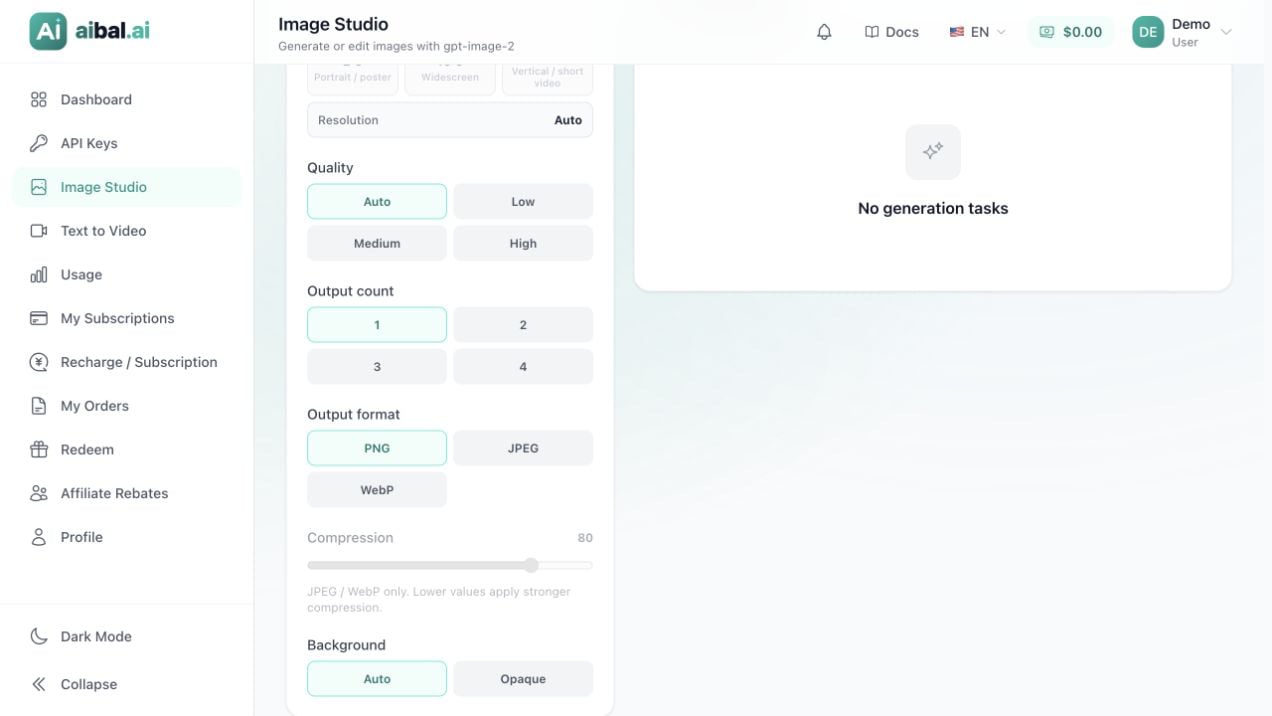
Image settings: resolution, quality, output count, format, compression, and background.
Edit with reference images
Click Add reference images (optional) and upload PNG, JPEG, or WebP files. You can add up to 4 references, no more than 10MB each and 40MB in total. With several images, use Set as main to choose the main reference; use Remove to discard one. Describe the intended change, such as “Keep the subject and composition; replace the background with light blue.” Click Generate, then preview and download as above. You can also select Use as reference on an existing result.Generate images through the API
Installcurl and set AIBAL_API_KEY securely in your local environment. Do not put a real Key in documentation, shared scripts, or source control. These commands submit real generation requests and may incur charges.
Send a text-to-image request
size and quality matches the web app’s automatic options. A successful response contains a data array, with images returned as b64_json or url; do not assume every response contains a directly accessible URL.
If data[0].b64_json is present, use Python 3 to save the first PNG:
data[0].url, open that URL and download the result promptly. Do not forward your aibal.ai API Key to the image URL.
Send an image-edit request
Replace/path/to/reference.png with your actual file path. This endpoint uses a form upload; do not set a JSON Content-Type header.
-F "image[]=@..." for additional references. Save the response in the same way as for text-to-image generation.
Special notes for Codex
Clients with an image executor
For Keys in an OpenAI group, the console provides two Codex configurations: Compatibility mode and API Key Mode. Compatibility mode keeps the older client setup; API Key Mode authorizes the image executor in clients that support this feature.1
Open the Key configuration
In the aibal.ai API Key list, locate a Key in an OpenAI group, click Use Key, and select Codex CLI.
2
Select API Key Mode
Under Codex authentication mode, select API Key Mode, then choose your operating system. This option appears only for the corresponding group and client selections.
3
Save the complete configuration
Save the generated configuration as instructed. If a model catalog file is required, save that too. Back up existing settings first; do not mix this setup with manual
env_key settings or Compatibility mode’s auth.json fragments. Copied settings contain your real Key and must be kept private on your device.4
Restart completely and create a new task
Completely quit Codex Desktop or CLI, reopen it, and create a new task. Refreshing a task or continuing an old session does not perform the reinitialization requested by the console.